The AI music generation tool Suno scraped millions of songs and lyrics from YouTube Music, Deezer, and Genius, as well as from the stock music libraries Pond5, Jamendo, Freesound, the International Music Score Library Project, and podcasts via RSS feeds, according to a hacker who breached the company and shared data about Suno’s training libraries with 404 Media. The hacker was also able to access user information for hundreds of thousands of Suno’s customers, as well as Stripe payment information, they said.
The hacked data is a rare look at exactly how AI models and tools are built. Suno is one of the largest AI music generation tools on the internet, and has been the subject of several major lawsuits from the record industry, which accused the company of training on millions of copyrighted songs. As part of these legal proceedings, Suno previously admitted that it was trained on “essentially all music files of reasonable quality that are accessible on the open internet,” which included a total of “tens of millions of recordings.” Suno has been making the argument that it is allowed to train on copyrighted works as fair use in those cases, one of which has been settled.
The lawsuits have made clear that Suno did train on huge amounts of copyrighted works, but the hacked data shared with 404 Media sheds more light on how Suno scraped songs from the internet and where it took them from. The Recording Industry Association of America accused Suno of ripping songs directly from YouTube; the hacked data seen by 404 Media confirms this.
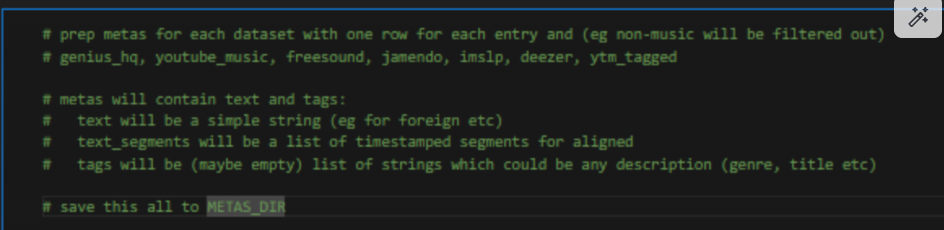
The hacked material includes source code that appears to be from 2023 and 2024 that includes scraping instructions and details about the scope of at least some of the scraping. For example, the comments in one file note that they will pull from “genius_hq, youtube_music, freesound, jamendo, imp, deezer, ytm_tagged,” and that “non-music will be filtered out.” A file called “youtube_music” notes that at the time the file was last updated, it had ingested “2,013,545 music clips.” Another file contains comments about different datasets Suno had created, which included “113,879 hours of youtube_music,” “17,615 hours of genius_hq,” “410 hours of free sound,” “19,514 hours of imslp,” “3,726 hours of jamendo,” “62,117 hours of pond5_music,” “12,287 hours of deezer,” “152,162 hours of ytm_tagged,” and “103 hours of musescore_lyrics.” In total, this is at least decades worth of music.
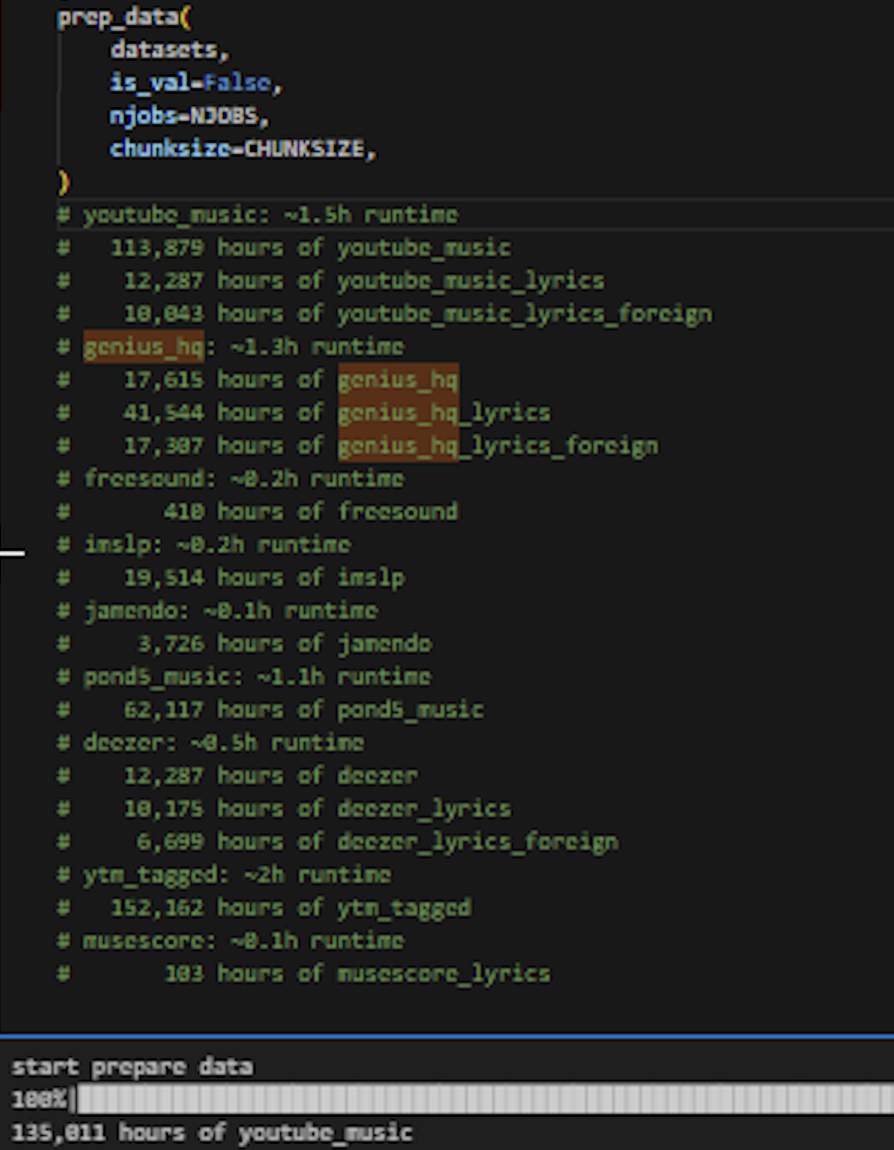
Other code the hacker shared with 404 Media appeared to look specifically for vocals by searching specifically for acapella versions of songs on YouTube. The code also suggested that Suno was using proxies to scrape songs from YouTube through a company called Bright Data, which sells scraping tools, infrastructure, and data services. Additional code shows that with the help of an online tool called PodcastIndex, Suno identified 420,000 different podcasts that had at least five, 30-minute episodes and sought to download roughly 1 million hours of podcasts.
It is unclear from the files seen by 404 Media exactly how Suno scraped files from each of the other platforms. Pond5 is a stock music and sound effects library owned by Shutterstock in which customers pay to access songs individually or can access a limited number of songs per month with a subscription. Pond5 claims it has 2.5 million music tracks; Suno’s data suggests that it scraped a substantial amount of the entire library. Genius, meanwhile, does not host songs directly on its website but allows Apple Music subscribers to play music through the website or to play samples of songs through Apple Music.
In one of its lawsuit filings, Suno said that its “training data includes essentially all music files of reasonable quality that are accessible on the open internet, abiding by paywalls, password protections, and the like, combined with similarly available text descriptions,” and that it was “constructed by showing the program tens of millions of instances of different kinds of recordings gathered from publicly available sources.”
“For Suno specifically, this process involved copying decades worth of the world’s most popular sound recordings and then ingesting those copies into Suno’s AI models so they can generate outputs that imitate the qualities of genuine human sound recordings,” the RIAA wrote in its lawsuit against Suno. “And to make matters worse, Suno obtained those copies in the first instance by unlawfully ‘stream ripping’ them from the popular streaming platform YouTube, and circumventing the technological measures designed specifically to prevent such unauthorized copying.”
In a statement, a Suno spokesperson said “As we have stated in public filings and disclosures, Suno’s AI models have been trained on publicly available music files and related metadata accessible on third-party websites on the open Internet. In November of 2025, we determined that Suno had been the subject of a limited security incident that was quickly contained. At the time, we immediately conducted an investigation and verified that the incident primarily involved outdated source code that is no longer in use at Suno and that no sensitive personal information was compromised. Importantly, Suno does not have access to customers’ full credit card numbers in Stripe.”
“Based on the limited nature of the customer information believed to be involved, we determined that individual notifications were not warranted under applicable privacy laws,” the Suno spokesperson added. Suno also sent a training data disclosure required under California law.
The hacker, ellie.191, told 404 Media they breached the company by hacking an individual employee using the Shai-Hulud worm, a supply chain attack that allowed hackers to harvest GitHub and cloud service credentials. They said they also accessed Suno’s customer list, which included customers’ emails and/or phone numbers and Stripe payment details, depending on what they used to login. The hacker provided a sample of some of the customers, some of whom confirmed to 404 Media they had used their phone number to sign up for Suno and said they were never notified of a breach. The hacker told 404 Media they had no specific motivation for hacking Suno and said “I like to hack anything and everything.”
404 Media has previously reported on leaked materials that showed Nvidia and Runway ML scraped YouTube en masse. For the most part, AI companies no longer deny training on copyrighted materials and instead make the argument that they are allowed to scrape artists’ work under fair use carveouts in copyright law.
Last month, The Atlantic reported on several music databases that are widely used in AI training, consisting of millions of tracks: “Three of the datasets I found are distributed as a list of links to songs on YouTube or Spotify. AI developers download the actual audio using tools that automate the job, some of which allow developers to bypass logins, advertisements, and mechanisms that might earn money or subscribers for creators. Such tools violate the terms of service of these platforms. (The fourth dataset, the Free Music Archive collection, is distributed with MP3s.),” the author of The Atlantic piece wrote. It is unclear whether Suno used any of these datasets.
The Suno spokesperson added that the company has worked to try to prevent users from generating songs that sound like existing songs. One of the contentions of several of the lawsuits was that Suno could be used to output songs that are nearly indistinguishable from existing works. “Our goal has always been to help people create original new music, not replicate someone else’s. That’s why we build our models around what we call ‘Original Creation, By Design.’ For example, we intentionally do not use artist names as a category of training metadata because we want our models to help people create brand new songs, not music that replicates other artists’ existing work,” the spokesperson said. “We believe artists deserve both new opportunities and strong protections. That's why we've invested in safeguards designed to help prevent impersonation, and other forms of misuse, while continuing to develop technologies for AI identification.”
Mikey Shulman, the CEO and founder of Suno, said on a podcast last year that he believes the “majority of people don’t enjoy the majority of the time they spend making music.”





Peter Vágner
in reply to ondrosik • •